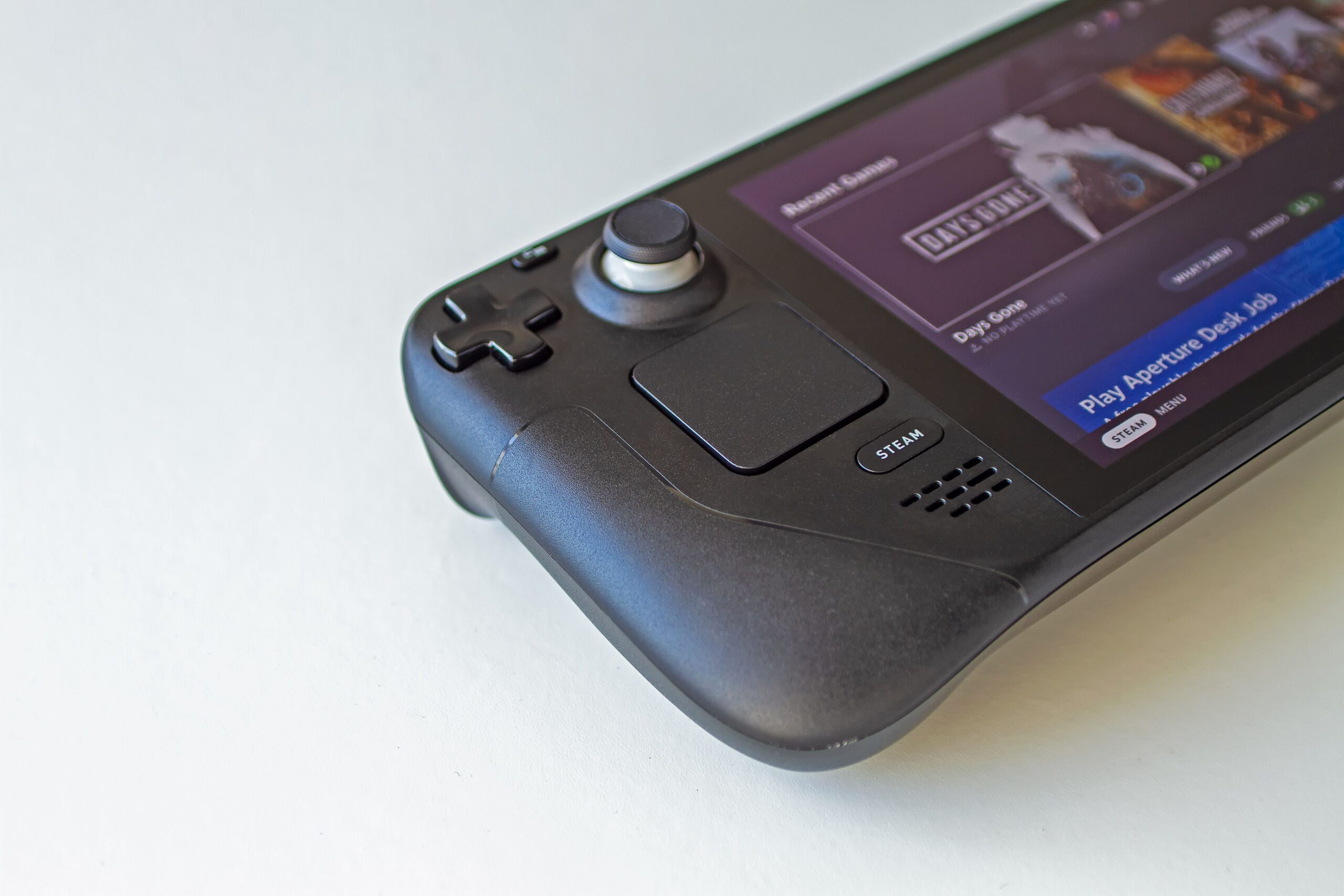

The Steam Deck is one of the best retro gaming machines you can buy today. It is a full Linux PC in a handheld case, and that is exactly why it turns into a pocket-sized time machine almost the moment you set it up. Unlike dedicated retro handhelds, which need you to trust a manufacturer’s software, the Steam Deck gives you complete control: you choose your emulators, your frontend, your settings, and even your storage. If you have been looking at the Steam Deck wondering whether it can actually play old games well, the short answer is yes. It plays everything from the NES to the PlayStation 2, and it does it better than almost any other handheld on the market.
This guide walks you through the entire process, step by step. We will cover the best tools, the correct order of operations, how to configure controllers and performance, and the honest answers to the questions nobody wants to ask. By the end you will have a Steam Deck that boots straight into a beautiful library of your old favourites.
Why the Steam Deck Is Perfect for Retro Gaming
The Steam Deck is not just a PC that happens to be portable. It is a PC that was designed around the idea of being held in your hands, and that changes everything for retro gaming. The buttons, the trackpads, the shoulder triggers, the gyroscope, and the full-size screen all work together in a way that a laptop or a desktop setup never can.
The hardware is more than powerful enough for emulation. The custom AMD APU handles even demanding emulators like PCSX2 and Dolphin with ease, and lightweight consoles like the SNES or the Game Boy run at full speed without breaking a sweat. You are never fighting for performance with 8-bit and 16-bit systems, and you have plenty of headroom for the harder stuff.
Another reason the Steam Deck shines is its operating system. SteamOS is built on Linux with a mode designed for gamepads, which means you can navigate everything with your thumbs. You do not need a keyboard and mouse for day-to-day use, and the whole interface feels like a console rather than a desktop PC.
The community is the final piece of the puzzle. Because the Steam Deck has been so popular, retro gaming tools were built for it quickly and refined over time. The result is that a completely beginner-friendly setup is now possible in an afternoon, which simply was not true two years ago.
What You Need Before You Start
Before you install anything, gather the basics. You need the Steam Deck itself, obviously, but also a few things that make life easier.
An SD card is the single most useful accessory for retro gaming. Retro game files are small, but your collection adds up fast, and keeping emulation separate from your Steam library keeps everything tidy. A fast card, rated A2 or U3, is recommended because emulators read a lot of small files. EmuDeck and most tools support the SD card out of the box.
You will also want to install the Steam Deck in Desktop Mode before doing any of this. Desktop Mode is a full Linux desktop that gives you a file manager, a browser, and the ability to run installation scripts. You enter it by holding the power button and choosing “Switch to Desktop”. The tools we use run from here, and once everything is configured you can switch back to Gaming Mode and never think about the desktop again.
Finally, set aside an afternoon. The actual installation is fast, but configuring your library, downloading box art, and tweaking a few settings will take longer than you expect. Rushing it leads to frustration, so give yourself time.
EmuDeck: The All-in-One Solution
EmuDeck is the tool that turned the Steam Deck from a great emulation device into a plug-and-play one. It is a single installer that sets up every major emulator for you, downloads the correct versions, configures them for the Steam Deck’s controls, and creates a beautiful library that appears in Gaming Mode.
The way EmuDeck works is simple. You run its installer in Desktop Mode, choose which emulators you want, and let it do the heavy lifting. It installs RetroArch for the older systems, standalone emulators for the more demanding ones, and a frontend called EmulationStation-DE to tie everything together. It also adds tools like Steam ROM Manager, which scans your games and adds them to your Steam library with artwork.
You do not need to understand how each emulator works to use EmuDeck. The configuration is done for you, including controller mappings, shaders, and performance settings. That does not mean it is magic, though. You still need to provide your own game files, and for some systems you need BIOS files, but EmuDeck gives you clear guidance on all of it.
EmuDeck is also constantly updated. New emulators, new fixes, and new features arrive regularly, and the updater keeps everything in sync. This is important because emulation software changes fast, and an outdated core can mean bugs that were fixed years ago.
How to Install EmuDeck
The installation process takes about ten minutes. First, switch to Desktop Mode and open the browser. Head to the official EmuDeck website and download the installer for the Steam Deck. You may need to right-click the download and choose “Open with Kate” or your file manager to run it.
Once the installer is running, you choose your storage location. If you have an SD card, pick it here, because this is where EmuDeck will create its folders for ROMs, BIOS files, and save data. After that you select the systems you want to emulate. You can be selective or just enable everything, and you can change your mind later.
The installer then runs for a few minutes. When it finishes, EmuDeck creates a folder structure with folders like roms, bios, e saves. Your job now is to put your game files into the matching folders, and your BIOS files where EmuDeck tells you to. The official documentation has a table that maps every folder to its system.
Finally, run Steam ROM Manager once. It scans your ROMs, pulls down box art and metadata, and creates shortcuts in your Steam library. You can then return to Gaming Mode, and your retro games appear right next to your modern titles.
EmulationStation-DE: Your Retro Frontend
EmuDeck gives you a lot of emulators, but you do not want to open each one separately. That is where EmulationStation-DE comes in. It is a frontend, meaning a single application that shows every game from every system in one beautiful, browsable interface.
You can think of it as a menu screen for all your retro consoles. You scroll through systems, pick the NES or the PlayStation, and see a grid of games with box art, descriptions, and even videos. EmulationStation-DE also handles the launching, so when you pick a game it opens the correct emulator automatically and returns you to the menu when you quit.
The design is extremely customisable. There are dozens of themes available, ranging from modern and sleek to nostalgic and pixelated, and you can change the look with a simple download. EmulationStation-DE also supports themes that change how the whole menu feels, which is a big part of the fun.
One of the best features is the automatic scraping. The first time you open EmulationStation-DE, you can trigger a scan of your ROM folders, and it will fetch box art, descriptions, release dates, and developer information for every game. The result is a professional-looking library that feels like a modern console interface.
The Emulators You Need and What They Play
Different systems need different emulators. EmuDeck installs everything for you, but it helps to know what is doing the work. The table below shows the standard setup that EmuDeck creates for each system.
| Console | Emulator | Performance on Steam Deck |
|---|---|---|
| NES, SNES, Genesis | RetroArch (Mesen, Snes9x) | Flawless, no effort needed |
| Game Boy, GBA | RetroArch (mGBA) | Flawless, no effort needed |
| Nintendo 64 | RetroArch (Mupen64Plus) | Great, some games need tweaks |
| PlayStation | DuckStation | Perfect, runs at full speed |
| PlayStation 2 | PCSX2 | Excellent, 60 FPS on most titles |
| GameCube / Wii | Dolphin | Excellent, most games run at full speed |
| Dreamcast | Flycast | Great, very few issues |
| Arcade | RetroArch (MAME, FinalBurn Neo) | Excellent |
| Saturn | RetroArch (Beetle Saturn) | Good, some games need settings |
| PSP | PPSSPP | Perfect, often upscaled |
| Xbox | Xemu | Playable, but experimental |
RetroArch: The Swiss Army Knife
RetroArch is the heart of most retro setups. It is not a single emulator but a framework that runs hundreds of emulators, called cores, behind a single interface. The Steam Deck version is configured by EmuDeck with shaders, bezels, and controller support already in place.
What makes RetroArch special is the consistency. Whether you are playing a Game Boy game or a Sega Genesis classic, the experience feels the same: the same menu, the same save system, the same fast-forward, the same rewind. You learn one set of controls and it works everywhere.
RetroArch also supports advanced features like runahead, which reduces input lag, and retro achievements, which add modern trophy-like goals to old games. Both work beautifully on the Steam Deck and are worth exploring once your library is set up.
Setting Up Your Controller and Trackpads
The Steam Deck’s built-in controls are already excellent for retro gaming, but a little configuration goes a long way. EmuDeck creates default layouts for every emulator, so buttons generally work out of the box. The face buttons map to the classic A, B, X, Y layout, and the shoulder buttons handle the equivalents on older consoles.
The trackpads are the hidden gem. You can configure the left trackpad as a virtual d-pad or a radial menu, and the right trackpad as a mouse or a camera. In PlayStation emulators this means you can aim in games like Metal Gear Solid or Syphon Filter using the trackpad as a light-gun or analog camera, which is far better than trying to use the joystick.
The back buttons are equally useful. They can be mapped to hotkeys like save state, quick load, or fast-forward. Many people map the left back button to quick save and the right back button to quick load, which turns old games into a much more forgiving experience.
Performance Tips and Best Settings
Most retro systems run perfectly with no tweaking, but a few benefit from attention. The PlayStation 2, GameCube, and Wii are the systems where settings matter, because they are demanding enough that the default configuration is not always ideal.
PlayStation 2 Settings
For PCSX2, the Steam Deck usually runs games at full speed with a 2x or 3x internal resolution. If a game dips below 60 FPS, you can lower the internal resolution first, then try turning off extra settings like texture filtering or large framebuffer. The Deck’s LCD and OLED versions handle these games differently, so test your own unit.
GameCube and Wii Settings
Dolphin, the GameCube and Wii emulator, is extremely well optimised. Most games run at 60 FPS with a 2x resolution. The setting that matters most is enabling the Vulkan backend over OpenGL, because it performs better on the Deck’s AMD graphics. EmuDeck sets this for you, but it is worth checking.
Nintendo 64 Settings
For the Nintendo 64, performance depends heavily on the game. Default settings work for most titles, but games like Majora’s Mask or Conker benefit from the paraLLEl core and a bit of experimentation with graphics plugins. EmuDeck installs Mupen64Plus-Next, which handles the vast majority of games well.
BIOS Files and ROMs Explained
This is the part everyone has questions about, so let us be honest and direct. Emulators are software that runs on hardware you own. The games themselves, the ROMs, are copyrighted material, and downloading games you do not own is piracy. It is your responsibility to use only games you legally own or that are freely available.
Many systems also require BIOS files. The BIOS is firmware that the original console used to boot, and some emulators need it to work properly. The PlayStation, Saturn, and Dreamcast are the most common examples. EmuDeck’s documentation tells you exactly which files you need and where to place them in the bios folder.
Some older games have actually been released for free. Several companies have re-released their classics as freeware, and many homebrew games are designed to run on original hardware or emulators. Starting with these is a great way to test your setup without any legal concerns.
Adding Games to Your Steam Library
Once your ROMs are in place, you want them to show up nicely in Gaming Mode. EmuDeck includes Steam ROM Manager for exactly this purpose. It scans your ROM folders, downloads artwork and metadata, and creates shortcuts in Steam.
The process is mostly automatic. You open Steam ROM Manager in Desktop Mode, let it parse your libraries, and press the save button to apply the changes. It then asks you to restart Steam, and when you come back, your games are in your library with proper box art and titles.
You can also create collections to organise things. A collection called “Retro” that contains all your emulated games is a nice touch, and you can add category tags so your games are grouped by system. The flexibility here is one of the biggest advantages of the Steam Deck over dedicated handhelds.
If you prefer a simpler approach, you can skip Steam ROM Manager entirely and just add EmulationStation-DE to your library as a single entry. Many people do exactly this: one shortcut that opens the full frontend with every game inside. It is faster to set up and keeps everything in one place.
Common Problems and How to Fix Them
No setup is perfect, and you will probably hit a snag at some point. Here are the most common issues and their fixes.
Games That Won’t Launch
If a game does not launch or crashes immediately, the first thing to check is the file format. Emulators are picky about extensions. A PlayStation game needs to be in a supported format like .cue e .bin o .chd, and a corrupted or incorrectly named file will not start. Re-dumping or converting the file usually solves it.
Bad Performance in Demanding Games
If performance is bad in a PlayStation 2 game, lower the internal resolution. This is the single most impactful setting. If the game still struggles, check that you are not running multiple settings at once, like upscaling plus heavy texture filtering.
Missing Artwork and Metadata
If artwork is missing in EmulationStation-DE, run the scraper again for the affected systems. The scraping can miss games if the ROM name does not match a known title, so renaming the file to the standard name often fixes it.
If a game has audio issues, especially on the Saturn or older arcade titles, look for an audio sync or latency setting in the emulator. Sometimes switching the audio driver to the standard Linux one solves the problem.
If the SD card is slow or games take forever to load, make sure you bought an A2 or U3 rated card. Cheap cards cause constant stuttering and long load times, and this is the most common hardware mistake people make.
RetroAchievements and Extra Features
Once everything works, you can add layers of fun. RetroAchievements is a service that adds trophies to retro games, exactly like modern console achievements. It is supported in RetroArch and in many standalone emulators, and EmuDeck makes it easy to enable.
You create a free account, log in inside RetroArch, and then games start showing achievement icons in the top corner. Hitting an achievement gives you the same dopamine hit as a modern game, and chasing them can make old classics feel completely new again.
Shaders are another feature worth exploring. RetroArch includes hundreds of shaders that mimic CRT screens, scanlines, and specific monitors of the era. A good CRT shader can transform the look of a game, making it feel like you are playing on the original television. EmuDeck sets up a few defaults, and you can cycle through them easily.
Rewind is the most underrated feature in all of emulation. It records a few seconds of gameplay so you can rewind your mistake. On the Steam Deck this is mapped to a simple button press, and it turns frustrating sections into a game of trial and error.
Is the Steam Deck Better Than a Dedicated Retro Handheld?
It is a fair question, because dedicated retro handhelds like the Anbernic and Miyoo devices are cheaper and simpler. The honest answer is that it depends on what you value.
Dedicated handhelds win on price and simplicity. They cost a fraction of a Steam Deck, boot into retro menus in seconds, and require no setup. For someone who only wants to play 8-bit and 16-bit games on a small screen, they are fantastic value.
The Steam Deck wins on power, screen, and versatility. It plays PlayStation 2, GameCube, Wii, and even some Xbox games at full speed, which no cheap handheld can touch. Its screen is bigger and better, the controls are more comfortable, and the same device also plays modern PC games. It is also endlessly customisable, with a full desktop behind it.
For most people, the honest recommendation is this: if you already own a Steam Deck, it is the best retro machine you will ever use. If you are choosing between the two from scratch, buy a cheap handheld for retro gaming only, or buy a Steam Deck if you also want modern games. Trying to use a cheap handheld for PlayStation 2 will only end in disappointment.
Alternative Setups Worth Knowing
EmuDeck is the easiest path, but it is not the only one. RetroArch on its own is a perfectly good option if you prefer minimalism, and it works the same way it does on any other Linux device. You install it, add cores, and build your own library without a frontend.
Batocera is another popular choice. It is a complete operating system that turns a USB stick or SD card into a bootable retro gaming machine. On the Steam Deck you can run it from an SD card as an alternative system, which gives you a fully standalone retro device that does not touch SteamOS at all.
Some people also use standalone emulators only, skipping RetroArch and the frontend entirely. PCSX2, Dolphin, and PPSSPP all have excellent Linux builds and their own interfaces. This approach gives you maximum control but sacrifices the unified library, and it is more work to maintain.
For cloud streaming, services like RetroArch Netplay let you play retro games online with friends, and some platforms offer game streaming that includes classic titles. These are fun extras, but they rely on a good internet connection and are not a replacement for local emulation.
Final Thoughts
The Steam Deck is a remarkable retro gaming device, and it only gets better as you learn its tricks. The combination of powerful hardware, a controller-first operating system, and an incredible community means that almost any retro game you can imagine is playable, often at a higher quality than the original hardware ever produced.
Start with EmuDeck, add your legally owned games, and let the tools do the heavy lifting. Spend a little time on performance settings for the demanding consoles, and you will end up with a handheld that holds your entire childhood in your pocket. Whether you play on the sofa, on a train, or at a desk, the Steam Deck turns old games into a brand new experience.