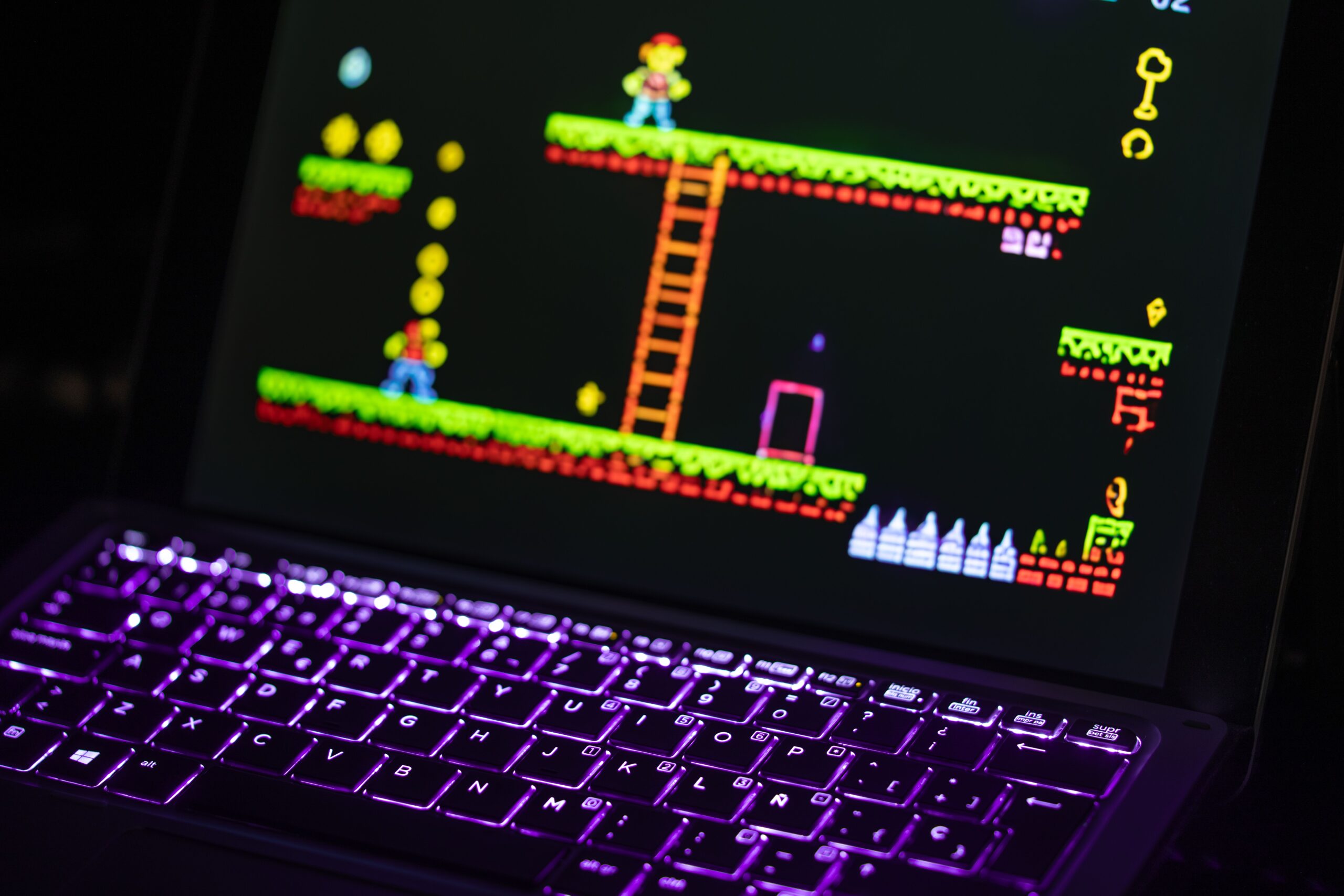

The short answer is yes, and it has been true for longer than most people think. Linux can play almost every retro game ever made, from the NES and the Game Boy to the PlayStation 2 and the GameCube, and it does it with software that is free, fast, and surprisingly easy to set up. You do not need a powerful machine either. A modest laptop, an old desktop, or even a Raspberry Pi is enough to run most classic systems at full speed. This guide walks you through the entire process, step by step: the best distros, the emulators that actually matter, how to build a library that feels like a console, and the honest answers about ROMs and BIOS files.
By the end you will have a Linux machine that boots into a beautiful collection of your old favourites. We will cover the fast path for beginners and the deeper options for people who want to tweak everything, because Linux retro gaming is one of those rare hobbies where both approaches work brilliantly.
Why Linux Is a Great Platform for Retro Gaming
Linux was built by people who care about keeping things running. That philosophy carries straight into emulation, where most of the serious software is developed with Linux as a first-class citizen. RetroArch, the Swiss Army knife of emulators, was born on Linux. MAME, the enormous arcade preservation project, treats Linux as a home platform. Dolphin and PCSX2, the two heavy hitters for GameCube and PlayStation 2, ship excellent native Linux builds. You are not making a compromise by choosing Linux here; you are often getting the best version of the software available.
There is a practical side to this too. Linux is light. A system like Linux Mint runs comfortably on hardware that Windows abandoned years ago, which means a spare laptop from a drawer can become a dedicated retro machine instead of e-waste. The whole operating system, the emulators, and a substantial game library can live on a 64 GB drive with room to spare.
The biggest misconception is that you need to live in a terminal. That is simply not true anymore. Modern distros have friendly installers and app stores, and the best retro tools install with a couple of clicks. You can spend a whole evening setting everything up without opening a terminal window once, even if knowing a few commands certainly does not hurt.
What You Need Before You Start
Before you install anything, gather the basics. The good news is that the shopping list is short. You need a Linux machine, a controller, and some storage. That is genuinely it for most people.
Any laptop or desktop from the last fifteen years works. If you plan to play only 8-bit and 16-bit systems, almost anything will do, even a Raspberry Pi 4 or 5. If you want PlayStation 2 and GameCube games at full speed, aim for something with a recent integrated GPU; modern AMD graphics handle these consoles surprisingly well. If you are unsure, start with what you own. Retro gaming is a wonderful hobby for people who like to reuse old hardware.
A controller makes the experience dramatically better. Any USB or Bluetooth gamepad with at least a d-pad and four face buttons works, and modern controllers like the DualShock 4, the Xbox controller, or an 8BitDo pad are recognised automatically. A keyboard is workable for older systems, but most games were designed for a pad, and the first time you play a platformer with a proper d-pad you will understand why.
Storage is rarely a problem. ROMs are small, typically measured in kilobytes and megabytes rather than gigabytes. A PlayStation 2 game in a compressed format sits around a gigabyte, but the entire libraries of older consoles fit on a modest drive. If you use a laptop, an external drive or a large SD card keeps things tidy.
The Best Linux Distros for Retro Gaming
The distro you choose sets the tone for the whole experience. For most people, a general-purpose distro with good driver support is the right call, because it is easy to install, receives regular updates, and can also be used for everyday work. For others, a dedicated retro distro that boots straight into a game menu is exactly what they want.
| Distro | Best for | Installation effort | Notes |
|---|---|---|---|
| Linux Mint | Beginners, general use | Low | Great drivers, huge community, everything works |
| Ubuntu | Beginners, general use | Low | Most emulators ship as easy installs |
| Pop!_OS | NVIDIA hardware | Low | Best out-of-the-box experience for NVIDIA GPUs |
| Batocera | Dedicated retro console | Very low | Boots straight into EmulationStation, like a console |
| Lakka | Minimal RetroArch machine | Very low | Official RetroArch distro, tiny and focused |
| RetroPie | Raspberry Pi | Low | The classic choice for Pi projects |
General-Purpose Distros: The Safe Choice
Linux Mint is the recommendation I give most often. It is based on Ubuntu, which means software compatibility is excellent, but it feels more restrained and easier to navigate than stock Ubuntu. Steam, RetroArch, and the standalone emulators all install cleanly, and the default desktop stays out of your way. For a machine that doubles as a daily driver and a retro gaming box, it is hard to beat.
Ubuntu itself is equally valid and arguably has the largest user base, which translates into more troubleshooting guides when things go wrong. Pop!_OS is the one to pick if you have an NVIDIA graphics card, because its driver handling is the smoothest in the business. Any of these three works for the rest of this guide; the differences matter less than people think.
Dedicated Retro Distros: The Console Experience
If you want a machine that behaves exactly like a games console, Batocera is the answer. You write its image to a USB stick or SD card, boot from it, and within minutes you are staring at EmulationStation, the polished frontend that lists your systems and games in a console-style menu. There is no desktop, no package manager, no maintenance. You plug in a controller, drop your ROMs onto the drive, and play. It is also the easiest way to turn an old PC into a dedicated retro machine that lives next to your TV.
Lakka is the lighter, more minimal sibling. It is the official RetroArch distribution, and it boots into RetroArch’s own interface with no layers in between. If you are comfortable with RetroArch and want the smallest possible footprint, Lakka is beautiful in its simplicity. RetroPie, meanwhile, remains the benchmark for Raspberry Pi builds, though on a Pi 5 a general-purpose distro with RetroArch installed is just as good.
Getting Started with RetroArch
RetroArch is the heart of most Linux retro setups, and for good reason. It is not a single emulator but a framework that runs hundreds of emulators, called cores, behind one consistent interface. Whether you are playing a Game Boy game or a Sega Genesis classic, the experience is identical: the same menus, the same save system, the same fast-forward, the same rewind. You learn it once and it works everywhere.
The easiest way to install it on Linux is through the Flatpak version, which is available in the app stores of Mint, Ubuntu, and most other distros. It stays up to date automatically and bundles everything it needs. The alternative is your distro’s own package, which works fine but can lag behind the latest release. For a first setup, Flatpak is the one I recommend.
Your First Launch
When you open RetroArch for the first time, it looks bare. That is normal. The first thing to do is open the online updater and download the core info files, which tell RetroArch about every system it can emulate. Then you download the cores you actually want. A sensible starting set is one core for each family: a Nintendo core like Mesen, a Super Nintendo core like Snes9x, a Sega core like Genesis Plus GX, a Game Boy core like mGBA, and a PlayStation core like DuckStation. You can add more later from the same menu.
Once the cores are installed, you point RetroArch at your ROM folders. There is a setting called Content Directory or Scan Directory where you add the folder that holds your games, and RetroArch remembers it from then on. With the library scanned, you pick a system, pick a game, and you are playing. The whole flow takes ten minutes the first time, and half of that is reading the menu names.
Standalone Emulators for Demanding Systems
RetroArch handles everything up to and including the PlayStation comfortably. For the heavier consoles, standalone emulators are usually the better tools. They are built by teams that focus on a single machine, and their Linux builds are first-rate. The table below shows the standard setup most people end up with.
| System | Emulator | Linux support | Notes |
|---|---|---|---|
| NES, SNES, Genesis, Game Boy | RetroArch cores | Excellent | All in one place |
| Nintendo 64 | RetroArch (Mupen64Plus) | Good | Most games run well |
| PlayStation | DuckStation | Excellent | Easier in RetroArch, but standalone is superb |
| Dreamcast | Flycast | Excellent | Great compatibility |
| PlayStation 2 | PCSX2 | Excellent | Native Linux builds, regularly updated |
| GameCube / Wii | Dolphin | Excellent | One of the most polished emulators on any OS |
| PSP | PPSSPP | Excellent | Often upscales beautifully |
| Arcade | MAME / FinalBurn Neo | Excellent | Native Linux heritage |
Dolphin and PCSX2 both have Flatpak versions that install with one click and update themselves. That is the path of least resistance. If you prefer, their official websites also publish AppImage builds, which run anywhere without installation. Either way, you are getting the same engine under the hood, and both emulators are aggressive about releasing fixes for the latest Linux drivers.
Building a Console-Style Library with EmulationStation-DE
Once you have emulators working, you may want the games all in one beautiful menu instead of scattered across applications. That is exactly what EmulationStation-DE provides. It is a frontend that shows every system and every game in a browsable, console-style interface, and it launches the correct emulator when you pick a title.
EmulationStation-DE is available as a Flatpak and works out of the box. You tell it which folders hold your ROMs, run the built-in scraper, and it fetches box art, descriptions, release dates, and developer information for every game. Within minutes you have a library that looks like the digital storefront of a modern console, all built from games you own.
The interface is extremely customisable. Dozens of themes are available, ranging from modern and sleek to pixel-art throwbacks, and swapping themes is a simple download. Many people spend as much time styling their library as they do playing, and honestly, that is part of the fun.
Controllers, Input, and Modern Extras
Linux input handling has come a long way. Most gamepads are plug-and-play: connect a DualShock, an Xbox pad, or an 8BitDo controller and it just works in RetroArch and the standalone emulators. Bluetooth pairing is handled by the distro itself, and the pad is then available to everything.
RetroArch deserves some credit for making input consistent across thousands of games. It maps every controller to a standard layout called the RetroPad, so a game designed for the SNES and one designed for the Genesis both use the same physical buttons on your controller. You set your pad up once and it applies to every system, which is a quiet miracle.
Shaders are the feature that surprises people the most. RetroArch includes hundreds of shaders that mimic CRT screens, scanlines, and the phosphor glow of old televisions. A good CRT shader can transform a pixel-art game from a flat, sharp image into something that genuinely looks like it is playing on the TV you grew up with. This is where Linux setups often look better than original hardware, which is a strange and wonderful sentence to write.
Rewind is another feature worth highlighting. RetroArch records a rolling buffer of gameplay so you can rewind your mistakes. Combined with save states, which let you snapshot a game at any moment, it turns brutal sections into a manageable game of trial and error. Both are a button press away on any controller.
BIOS Files and ROMs Explained
This is the part everyone has questions about, so let us be honest and direct. Emulators are software, and they are legal to use. The games themselves are copyrighted, and downloading ROMs of games you do not own is piracy. The safe and correct approach is to use games you legally own, games that have been officially released for free, and homebrew titles. For systems like the PlayStation, Saturn, and Dreamcast, some emulators also need BIOS files, which are firmware from the original hardware; you are expected to dump these from consoles you own.
The good news is that there is no shortage of legal content. Many classic games have been re-released as freeware by their publishers, and the homebrew scene has produced thousands of genuinely good games designed to run on original hardware or emulators. Services like the Internet Archive host legally preserved and public-domain software too. Starting with these is a great way to test your setup without any concerns, and you will be surprised how much there is to play.
Performance Tips and Best Settings
Most retro systems run perfectly with no configuration at all. The demanding consoles, PlayStation 2, GameCube, and Wii, are where a few settings make a real difference. The good news is that Linux has an advantage here: Vulkan.
Vulkan is the modern graphics API, and both Dolphin and PCSX2 perform better with it than with OpenGL, especially on AMD hardware. Both emulators default to sensible backends, but it is worth checking that Vulkan is selected. If you run into stutter on a specific game, lowering the internal resolution is the single most impactful setting; a game running at 2x instead of 3x resolution is usually indistinguishable and always smoother.
For older systems, the setting that matters most is input latency. RetroArch’s runahead feature can reduce lag to nearly nothing, and enabling hard GPU sync or simply using a shader that mimics a CRT can make games feel far more responsive. Play a platformer with and without a good CRT shader and you will notice the difference within seconds.
Common Problems and How to Fix Them
No setup is perfect, and you will probably hit a snag at some point. Here are the issues people run into most often, and how to solve them.
Games That Won’t Launch
If a game does not start or crashes immediately, check the file format first. Emulators are picky about extensions. A PlayStation game needs to be in a supported format like .cue and .bin or .chd, and a file with the wrong or missing extension will simply not load. Re-dumping or converting the file almost always fixes it.
Bad Performance in Demanding Games
If a PlayStation 2 or GameCube game runs slowly, lower the internal resolution first. It is the highest-impact setting by far. Then check that Vulkan is selected as the renderer, and avoid stacking expensive effects like heavy texture filtering on top of upscaling.
Controller Not Detected
If a pad is not recognised, start with the basics: a wired connection, or a fresh Bluetooth pair. Then open RetroArch’s Input settings and check the port configuration. The RetroPad mapping is usually automatic, but occasionally a controller registers as an unknown device and needs its mapping loaded from the controller database.
Missing Artwork in the Frontend
If EmulationStation-DE is missing box art, run the scraper again for the affected systems. Scraping misses games when the ROM filename does not match a known title, so renaming the file to the standard name often fixes it in one pass.
Frequently Asked Questions
Is retro gaming on Linux legal?
Emulators themselves are legal software. What matters is where your game files come from. Using ROMs of games you own, official freeware releases, and homebrew titles is fine. Downloading games you do not own is not. The software is not the problem; the source of the games is.
Do I need a powerful computer for retro gaming on Linux?
Not at all. A Raspberry Pi 4 runs 8-bit, 16-bit, and even most PlayStation games. For PlayStation 2 and GameCube, you want a modern integrated or dedicated GPU, but a mid-range laptop from the last few years handles those consoles well. Start with the hardware you already own.
Is Batocera or RetroArch better?
They solve different problems. Batocera is a full operating system that turns a machine into a dedicated console, which is ideal if you want a plug-and-play device next to your TV. RetroArch runs inside your existing Linux install and is the right choice if you want to play retro games on a machine you also use for other things. Many people use both.
Can I use my Windows emulator saves on Linux?
Yes. Save files, save states, and ROMs are platform-independent. You can copy your save folders from Windows to Linux and the emulators will read them, provided you use the same emulator or core. This makes switching operating systems far less painful than it sounds.
Final Thoughts
Linux is one of the most underrated retro gaming platforms in existence, and the reasons are practical rather than ideological. The software is free and excellent, the system runs on hardware you already own, and the community keeps improving the tools year after year. What used to be a fiddly, terminal-heavy hobby is now an afternoon project for anyone who can install an app.
Start simple: install Linux Mint or Ubuntu, add RetroArch through the app store, and play a few games. If you love it, graduate to EmulationStation-DE for a beautiful library, add DuckStation and PCSX2 for the PlayStation family, and let a good CRT shader remind you why those pixels looked so magical on a television. Whether you reuse an old laptop or build a dedicated Batocera box for the living room, you are about to rediscover the games that made you fall in love with the hobby in the first place.